Feature Launches · Announcements
Keeping you and your agents in check with markdownlint
 Serafin Garcia · · 8 min read

Problem
When growing a knowledge base (KB), it is important to maintain document hygiene. You may want specific organization of section headings, formats for links, or general spacing of a document. This is known as linting.
For users with existing KBs, we know that you all may have existing linting rules to keep the KB from drift. When coming to a new editor, you might not want to learn about a bespoke system. You just want your editor and your agents to be aware of your existing rules.
For users with new KBs, you may want document hygiene, but you don't want to have to craft some JSON config. You just want to turn on a system and easily tweak it if necessary.
Finally, a knowledge base isn't only written by humans anymore. Agents draft docs, take notes, and reorganize content. You want your agents held to the same rules you are, or hygiene rules won't keep drift out.
We understand those desires and are introducing native support for markdownlint in Open Knowledge: your existing config works as-is, a GUI builds one if you don't have it, and your agents see the same rules you do.
What is markdownlint?
At its core, Markdown is a very forgiving language. It renders differently depending on the editor and allows for small inconsistencies to build up. A linter can reduce that by enforcing consistency across contributors, preventing bugs from surfacing.
Here is an example:
# My Guide
Here are the steps:1. Install the tool2. Configure it:* Set the path* Set the token3. Run it
While this looks correct, as plain text, it can break for some renderers. There is no space between "Here are the steps:" and the list, and the bullets are indented in the ordered list inconsistently. Because of this, some renderers may display incorrect nesting or weird collapsing. A linter such as markdownlint can provide rules to guard against this.

- MD032 - lists should be surrounded by blank lines
- MD004 - inconsistent unordered list style (mixing markers)
A corrected version would look like this:
# My Guide
Here are the steps:
1. Install the tool2. Configure it:   - Set the path   - Set the token3. Run it
Markdownlint is the de facto standard for linting Markdown. It powers the most popular VS Code Markdown linting extension as well as many CI pipelines. It provides roughly 60 linting rules for file-body structure to maintain style and prevent drift. These rules range from headings, lists, whitespace, code blocks, links, and overall style preferences.
In Open Knowledge, this is the actual markdownlint engine, not a lookalike. Your config is read as-is, without the need to migrate or import.
Seeing your errors
Like most editors, issues surface inline as you write, in both WYSIWYG and source mode. For a wider view, the Problems tab on the doc panel lists every issue in your current doc or across the whole project, and clicking an issue jumps you straight to it.
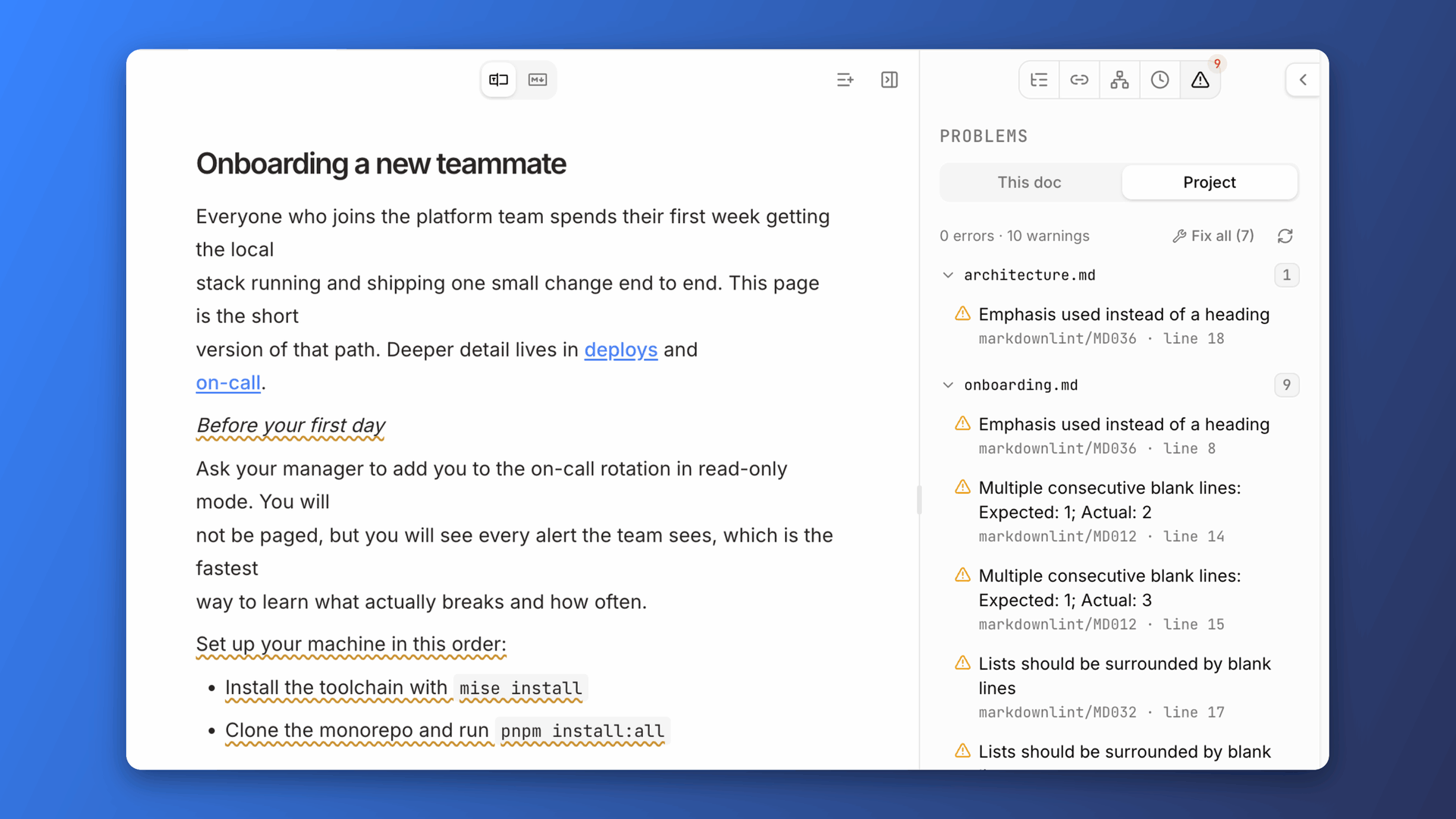
Fixing your errors
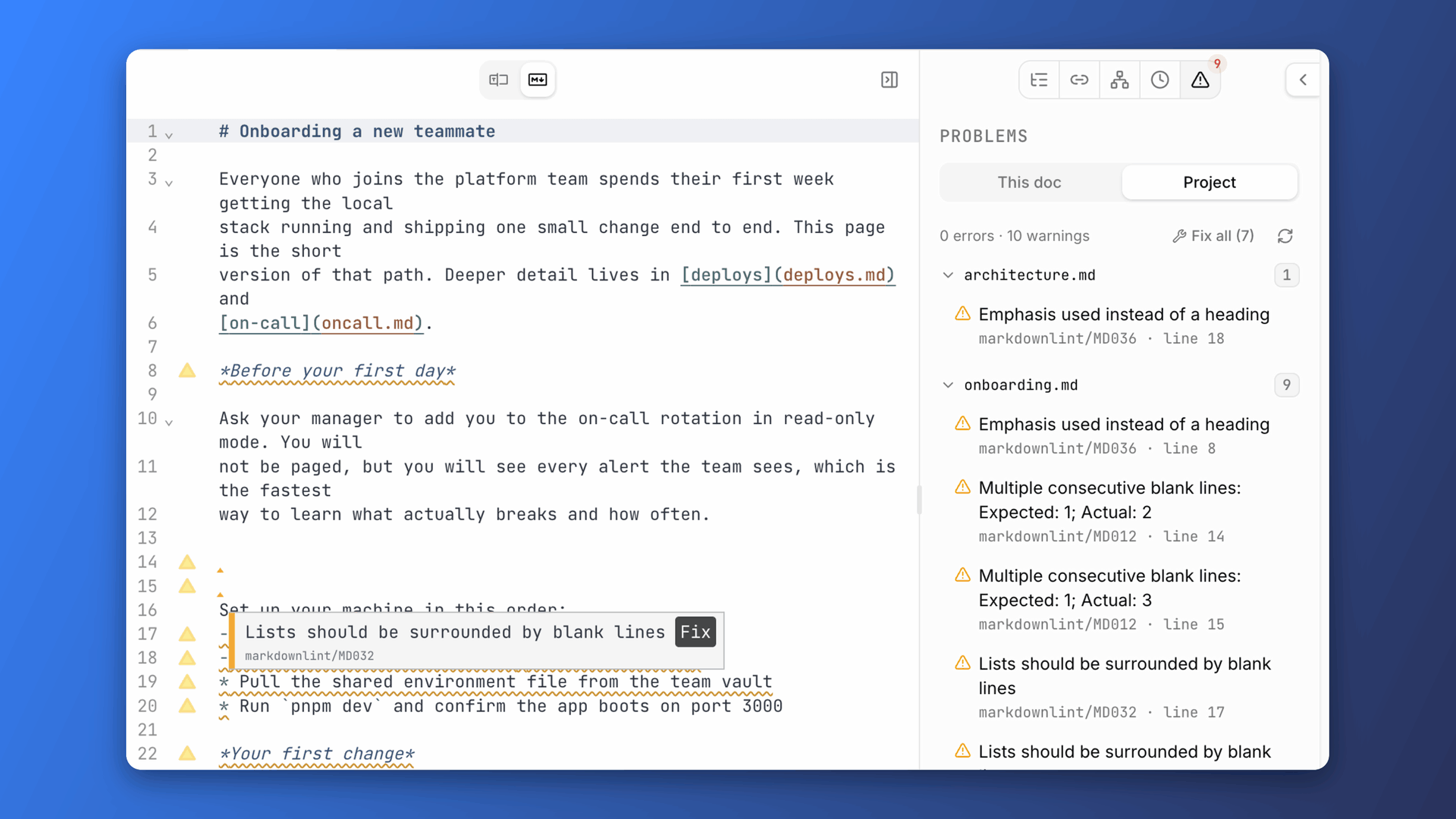
While you can always fix an issue by hand, many markdownlint rules are auto-fixable wherever you see them:
- Hover over an issue and click "Fix" on the pop-up
- Click "Fix" or "Fix all" on issues in the Problems tab
- Run from the terminal to auto-fix across the whole project
Your agents follow the rules too
With the plugin on, OpenKnowledge will surface lints to your agent. The MCP tool allows your agents to run the same lint rules that you see in the editor. It can check either a single file or the whole project, returning a structured array of all issues. Fixing works the same way. The MCP tool supports , which applies every deterministic fix with the markdownlint engine.
Here is a lint of a doc with two issues, one of which is auto-fixable.
{ "text": "notes/onboarding.md: 2 warnings\n ⚠ line 7 markdownlint/MD012: Multiple consecutive blank lines: Expected: 1; Actual: 2\n ⚠ line 5 markdownlint/MD036: Emphasis used instead of a heading\n1 of 2 are auto-fixable — pass `fix: true` to apply in place (attributed, live preview). The other 1 need content edits via `edit`/`write`.", "files": [ { "file": "notes/onboarding.md", "diagnostics": [ { "severity": "warning", "source": "markdownlint", "code": "MD012", "message": "Multiple consecutive blank lines: Expected: 1; Actual: 2", "range": { "start": { "line": 6, "character": 0 }, "end": { "line": 6, "character": 0 } }, "fixes": [ { "range": { "start": { "line": 6, "character": 0 }, "end": { "line": 7, "character": 0 } }, "newText": "" } ] }, { "severity": "warning", "source": "markdownlint", "code": "MD036", "message": "Emphasis used instead of a heading", "range": { "start": { "line": 4, "character": 0 }, "end": { "line": 4, "character": 42 } } } ] } ], "errorCount": 0, "warningCount": 2}After seeing the issue, the agent can call with . This fixes one of the issues and returns back a lint to your agent:
{ "text": "Fixed 1 problem in notes/onboarding.md.\n ⚠ line 5 markdownlint/MD036: Emphasis used instead of a heading\n1 problem remain (1 warning) — need content edits via `edit`/`write`.", "files": [ { "file": "notes/onboarding.md", "diagnostics": [ { "severity": "warning", "source": "markdownlint", "code": "MD036", "message": "Emphasis used instead of a heading", "range": { "start": { "line": 4, "character": 0 }, "end": { "line": 4, "character": 42 } } } ] } ], "fixedCount": 1, "errorCount": 0, "warningCount": 1}All nondeterministic issues can be resolved by just asking the agent. With it aware of the MCP tools, it can find issues and suggest/apply fixes. You can also click the "Ask AI" button for individual issues in the Problems panel.
Agents don't just clean up after the fact. When making edits, they receive a warnings array that includes any lint rules that they violated. These never block a write, they only inform. This way an agent can still contribute to the doc and follow up with linting fixes rather than rewrite the whole document.
Here an agent appends a section but reaches for emphasis where a heading belongs. The edit lands, and the rule it broke comes back with it:
{ "text": "Edit applied successfully.\n⚠ Content rule markdownlint/MD036 (warning, line 18): Emphasis used instead of a heading", "document": { "brokenLinks": [], "warnings": [ { "kind": "lint-violation", "source": "markdownlint", "code": "MD036", "message": "Emphasis used instead of a heading", "severity": "warning", "line": 18, "column": 1 } ] }}From zero to your ideal config
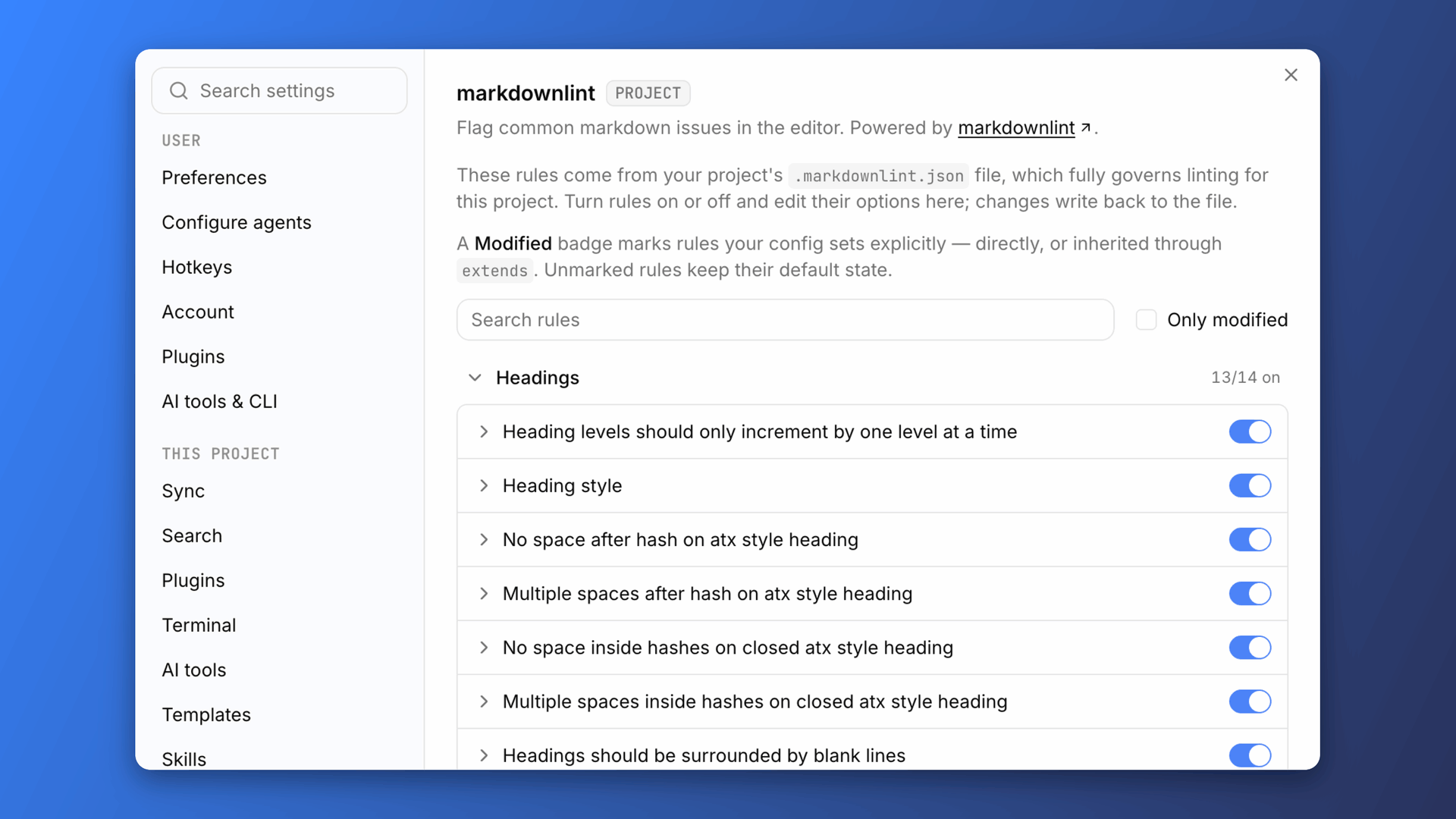
Turn on the plugin in Settings → This project → Plugins and issues start appearing for your whole project immediately.
- If you have an existing config, it just works.
- If you don't, you start with the same defaults as the VS Code extension, and we don't create a config file until you customize something.
From there, shape the rules to suit your KB. It's a standard , so power users can edit it by hand. And since it's just a file, your agent can edit it too.
Open Knowledge also supplies a GUI that maps 1:1 onto the config file, with explanations and documentation links for each option. The config updates only when you make a change, and it's always clear which rules you've modified. You can also reset each entry to its default state, removing it from the config. This GUI is shown both in the WYSIWYG view for the file and in the plugin settings.
What's next?
This is just the first step in building plugins that help shape content rules for your knowledge base. Download the latest version of OpenKnowledge to try out markdownlint now, and follow us on X, join our Discord, star the GitHub repo, and subscribe to our newsletter at openknowledge.ai to see what comes next!
About the author