Launch Week · Feature Launches
Native Integrations with any agent via ACP

 Mike Rashkovsky, Abraham Aremu · · 2 min read
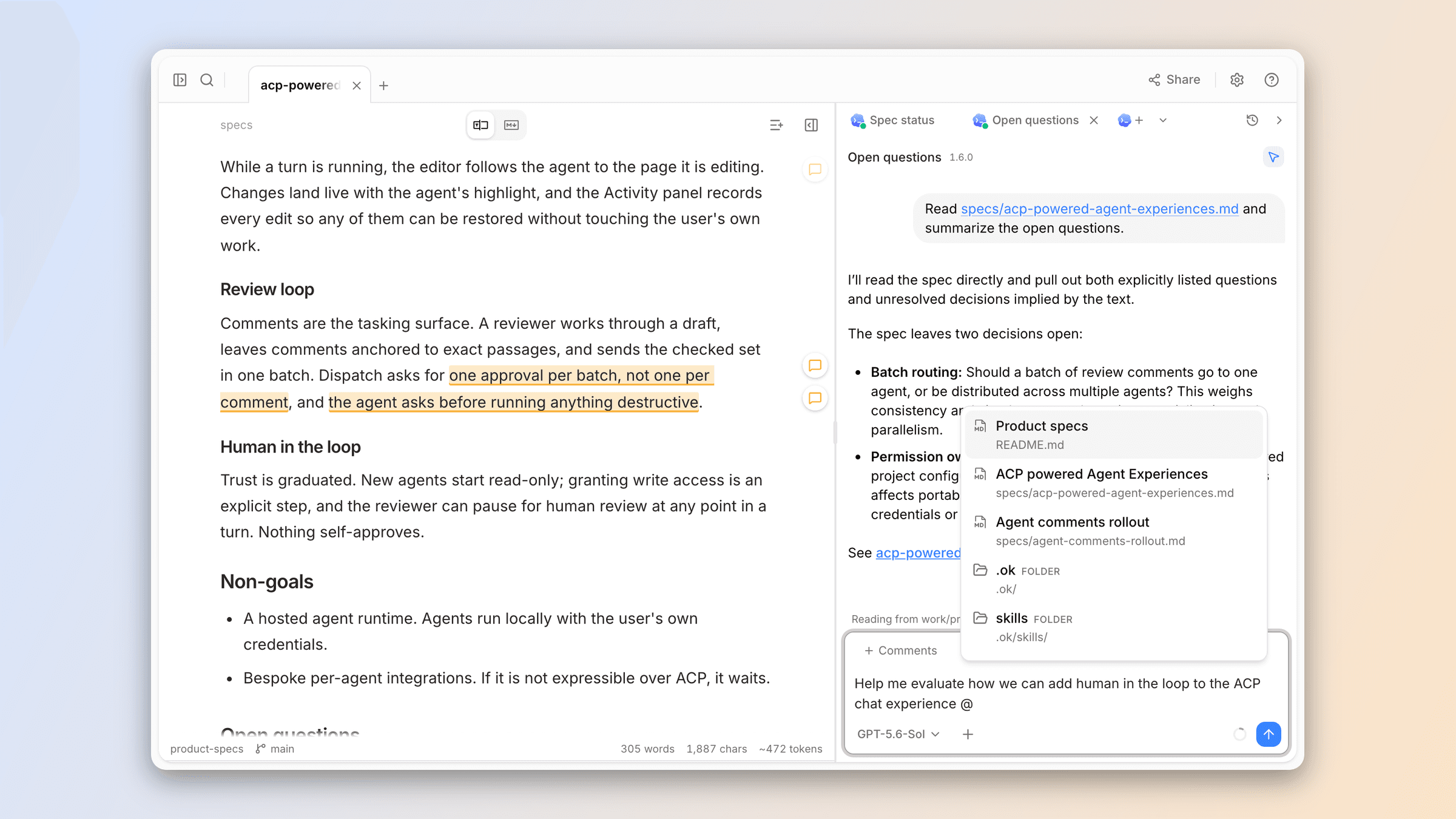
Today, we're making generally available an even more integrated way to use your favorite agent directly within OpenKnowledge with our own native UI experience built on top of ACP.
The Agent Sidepanel
To try it out, use the "Ask AI" composer in the UI or the shortcut to open the Agent Sidepanel.
Here, you can start new conversations with any agent and switch between existing conversations. You can tag files and folders with , attach images, and use an agent's slash commands.
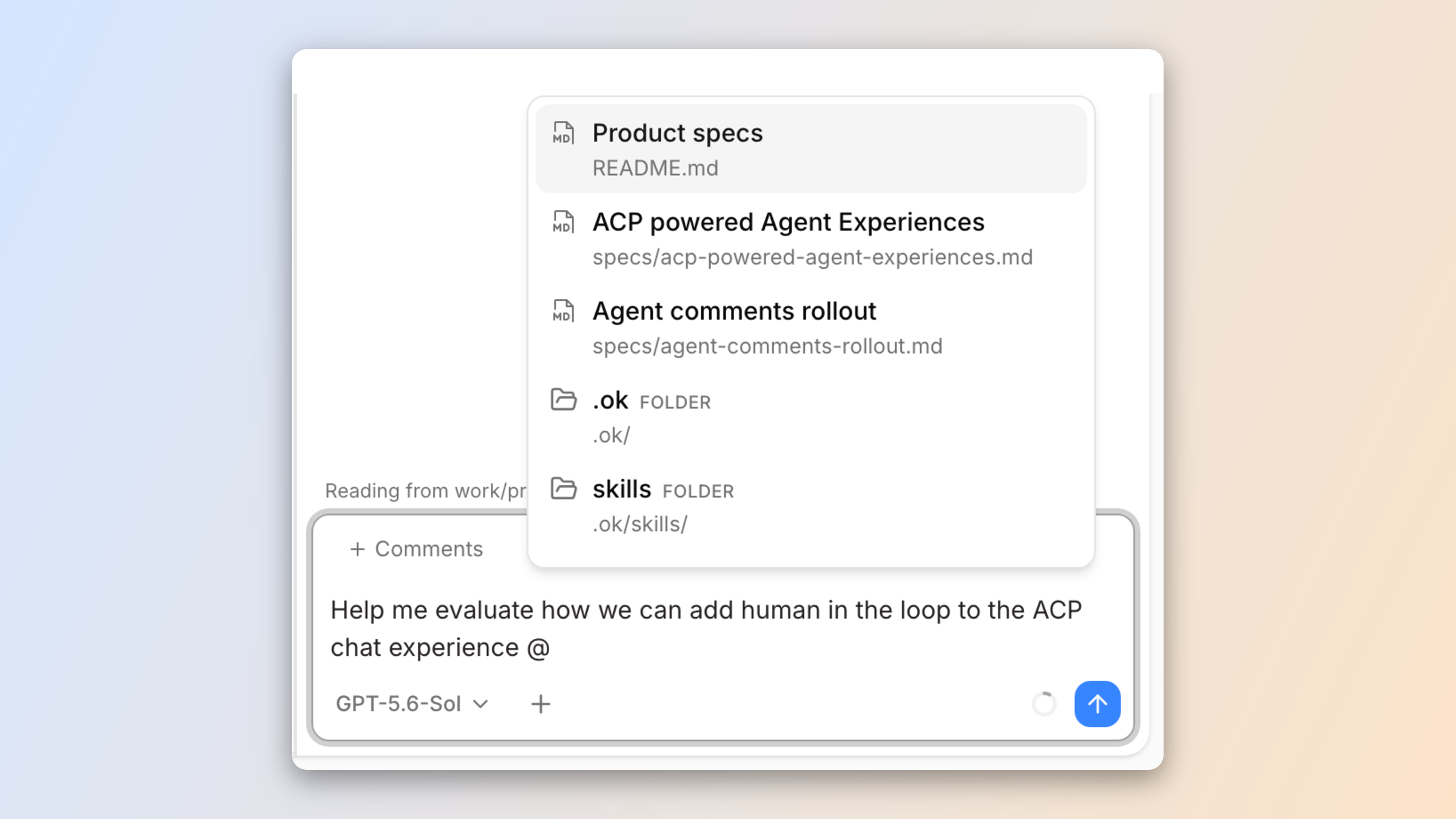
When agents make edits, the new Follow Mode updates the OpenKnowledge viewer to open the documents the agent modifies as it works. When the agent edits a page, you're taken there and watch the changes land live, with animations that let you follow along.
Comments for agents
Another way to interact with agents is by leaving comments. We've found it particularly helpful for annotating engineering specs, blog drafts, and documentation.
To leave comments, select any text or content and click on the Comment button, or use . That'll add the comment to your comment queue and open the comments sidebar, where you can review all pending comments.
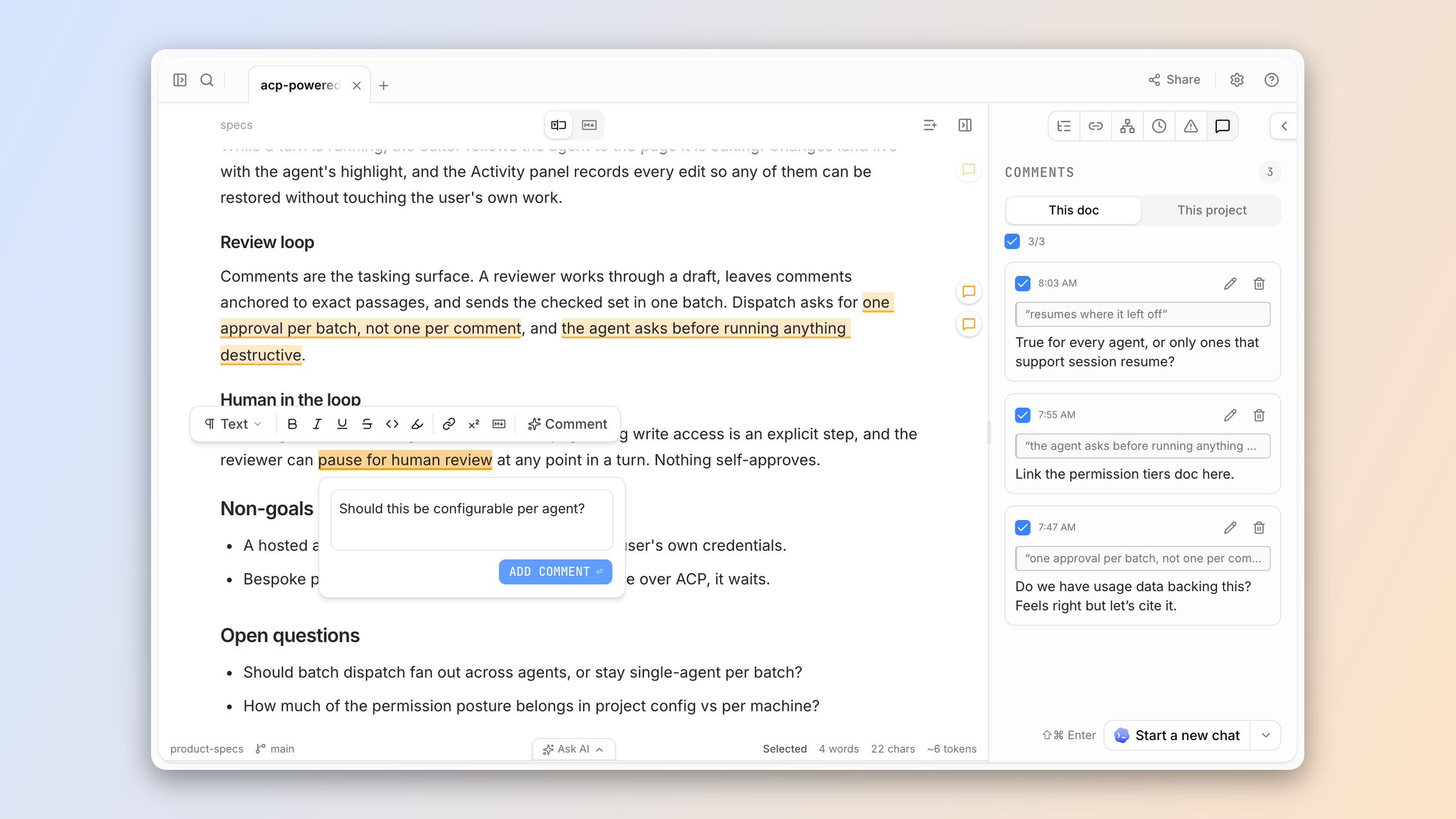
When you're done leaving comments, press Send to chat in the comments sidebar. Your agent gets full context on the files and content selected and can work through all changes at once.
Powered by Agent Client Protocol
This experience is powered by the Agent Client Protocol (ACP), which also enables integrations with 30+ agent harnesses.
ACP leverages whichever agents you already have on your computer, so no separate sign-in or billing is required.
Agents inherit and use all the MCP servers and skills on your computer, so they keep all the same capabilities you expect.
Get started
Update to the latest OpenKnowledge (or download it), open Settings → Configure agents, and enable an agent under In app. Press , or leave a few comments and send them.
About the authors