Timeline and recovery
Review the edit history for the open document, including agent, human, upstream sync, and file system changes, with inline diffs and version restore.
The timeline shows you the history of edits made to the document you have open. From there you can view or revert to older versions of the document.
What the timeline shows
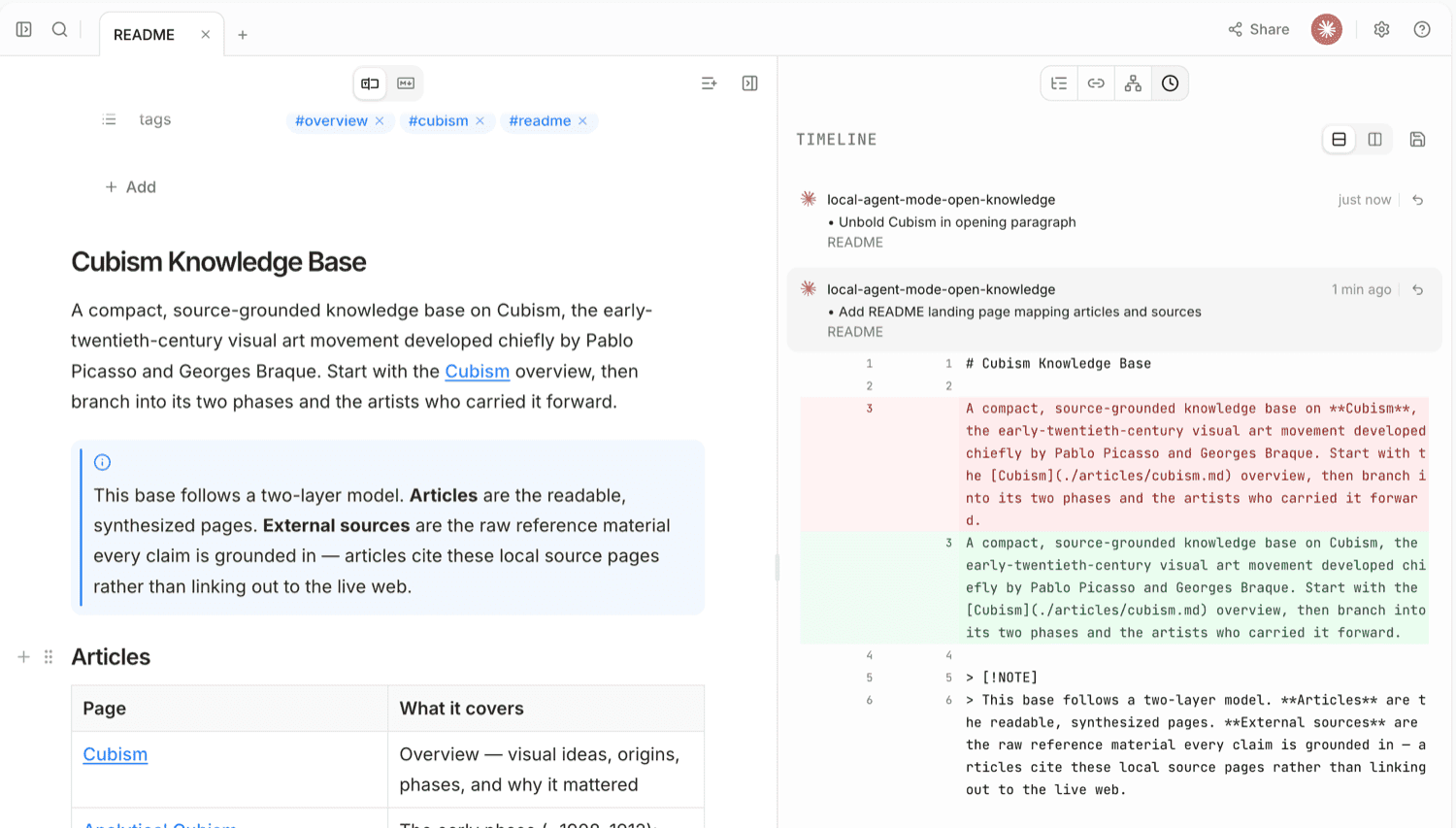
Open the timeline from the document side panel by clicking the icon. Each entry shows who made the change, when it happened, and a short summary of the change.
Timeline entries include:
- Agent and human edits with contributor attribution and change summaries
- Upstream sync entries from Git
- File system changes made outside of OpenKnowledge
- Recovered content entries OpenKnowledge saves itself when it cannot merge changes into the document, such as an external file change with no acknowledged base
Project-wide checkpoints saved by agents via the checkpoint MCP tool do not appear on the timeline; agents find and restore them with the history and restore_version tools.
OpenKnowledge also saves recovery entries itself. When it detects an external file change on its own and has no acknowledged base to merge the change against, the disk version replaces the document and the pre-change version is preserved as a Recovered content entry, which you can restore like any other timeline entry. When an agent write collides with an unmergeable external change instead, the write is refused as a conflict: your current content is kept, the disk change is not applied, and no entry is saved.
The timeline is not the editor's undo history. Each timeline entry is a snapshot of the whole document, while undo steps back through your own recent edits in the pane where you are working. Agent edits, human edits, and file-system changes are batched into an entry once activity settles. Upstream syncs get their own entry when the sync lands. For when source-mode undo starts fresh, see Editor → Undo in source mode.
The timeline is per branch: it shows the branch's own edits, plus history from before the branch diverged from main. History is stored in a shadow git repo inside your project, so entries and attribution survive app restarts and agent sessions — see Attribution and collaboration.
Review changes
Click a timeline entry to expand it. OpenKnowledge shows an inline diff so you can compare that version with the current document. If that version has the same body as the current document (properties are not part of the diff), you will see No changes.
You can switch between unified and split diff layouts from the toggle at the top of the timeline panel (shown once the timeline has entries).
Restore a previous version
Use the restore button on a timeline entry to restore the document to the selected version. Restoring is append-only: OpenKnowledge creates a new change with the old content instead of deleting history.